Use it
Tabs & Library
Choose and arrange what you see.
The tab bar is yours: pick the tools you use, drop the rest, and put them in the order you like.
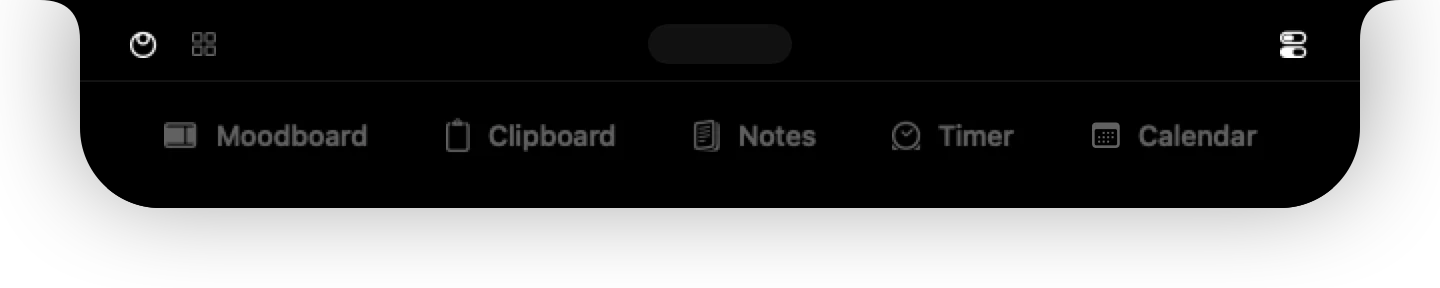
Open a tab
Click anywhere on a tab, not only on its icon or name.
Add tabs
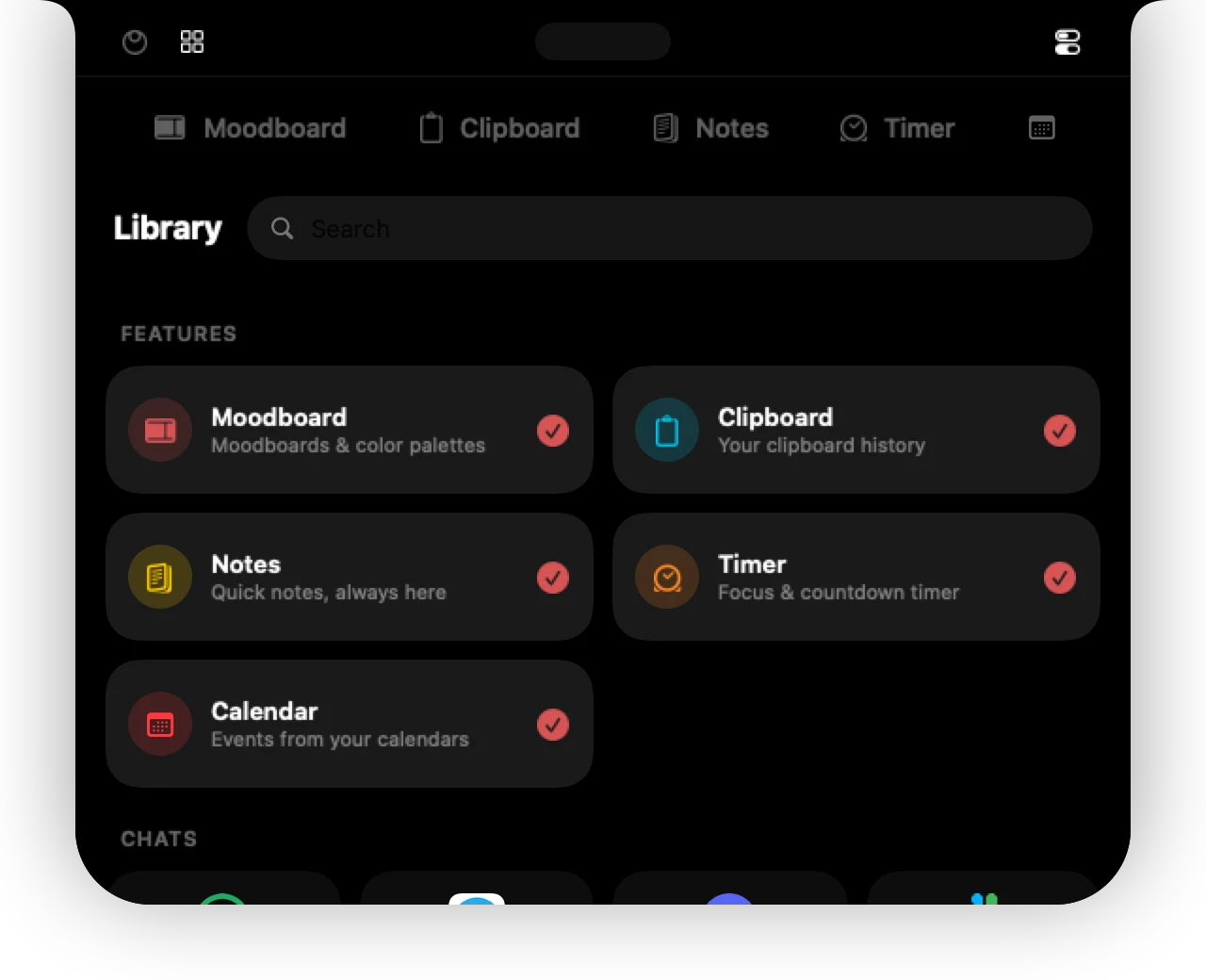
Press the + at the end of the tab bar to open the Library. It lists every tool (Moodboard, Clipboard, Notes, Timer, Calendar) and every web app. Add what you want; add it again to remove it.
Remove a tab
Right-click a tab and choose Remove tab. Your data stays: removing the Notes tab does not delete your notes. Add it back from the Library any time.
Icons, text or both
Tabs can show an icon and its name, only the icon, or only the name. Right-click any tab and pick Icon & text, Icon only or Text only, or change it in Settings → Behavior → Tabs. With icon only, hover a tab to see its name. Unread counts of chat apps stay visible in every style.
Reorder
Drag a tab left or right. Tools and web apps are ordered separately, divided by a thin line.
Too many tabs?
The bar scrolls sideways. With a trackpad, swipe; with a mouse, just use the wheel.
Home
Home is the compact view: your music player on the left and a column of quick icons for your tools and pinned apps on the right.
Can't find it? Write to support@01st.app.