Start
Install & first steps
Download, trial and your first minute.
Requirements
- A Mac running macOS 14.6 or later. It works natively on Apple Silicon and Intel.
- A Mac with a notch looks best, but 01ST also sits at the top centre of Macs without one.
Install
- Download the app from the download page.
- Open the disk image and drag 01ST to your Applications folder.
- Open it from Applications. A short intro plays, then the island sits in the notch.
The app is signed and notarised by Apple, so macOS opens it without warnings.
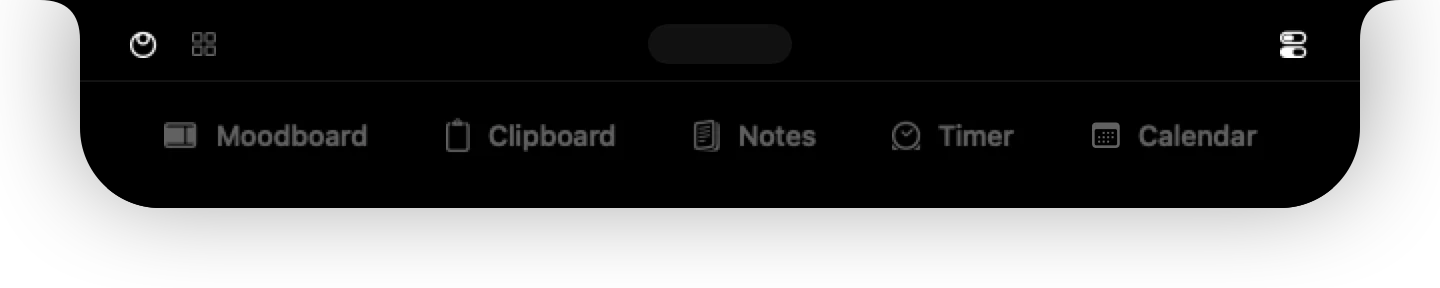
Your first minute
- Open the island. Move the cursor to the notch. If it does not open, click it once, or press ⌥ Space.
- Try Clipboard. Copy some text anywhere, then open the Clipboard tab. It is already there.
- Start a moodboard. Drag any image from your browser or Finder. A small drop tile appears under the notch. Let go on it.
- Make it yours. Press + at the end of the tab bar to add tools and web apps, or right-click a tab to remove it.
The welcome tour
The first time you open 01ST, a short tour helps you set it up. It takes under a minute and you can skip it at any time.
- Welcome. Your 3-day free trial has started.
- Pick your tools. Moodboard, Clipboard, Notes, Timer and Calendar. Switch off what you do not need.
- Add your apps. Choose web apps such as Spotify, WhatsApp, ChatGPT or Pinterest.
- Make it yours. Decide whether the island opens on hover or on click, how tabs look (icon and text, icon only or text only), whether 01ST opens when you sign in, and connect Apple Calendar if you use it.
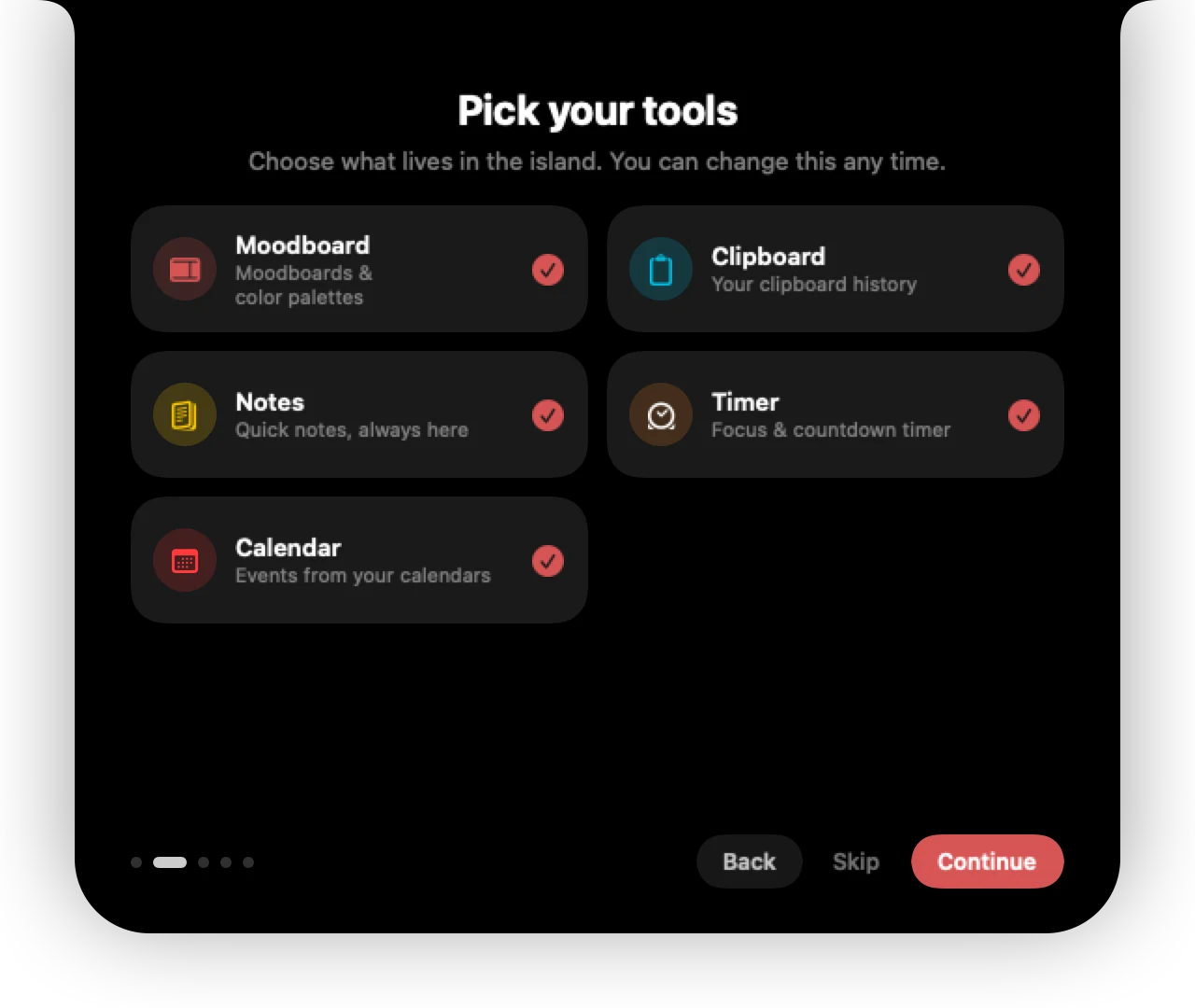
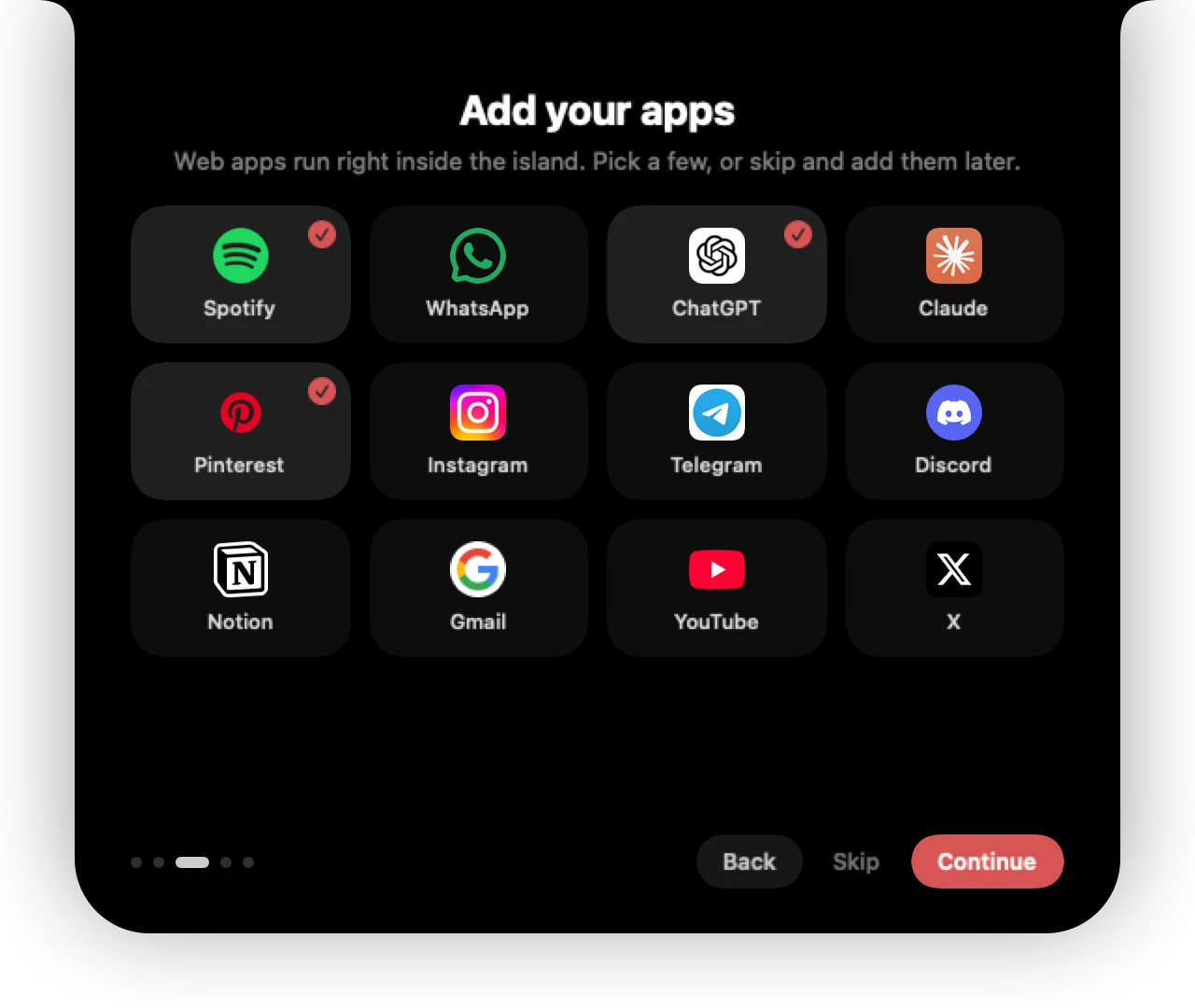
Want to see it again? Open Settings → Help & legal → Welcome tour.
Free trial
Every download includes a free 3-day trial of the whole app, no card needed. When it ends, 01ST locks until you enter a licence key. Your boards, notes and clipboard history stay on your Mac and are there again the moment you activate. See Licence & Macs.
The menu bar button
01ST has no Dock icon and does not appear in the app switcher: it lives in the notch and in the menu bar.
01ST adds a small Hide / Show button to your menu bar. Click it to hide the island completely or bring it back. Right-click it for the menu: Hide/Show, Check for Updates…, Docs, What's New and Quit 01ST.
Can't find it? Write to support@01st.app.